> ## Documentation Index
> Fetch the complete documentation index at: https://docs.fabro.sh/llms.txt
> Use this file to discover all available pages before exploring further.
# Server Operations
> Operate the Fabro server: starting, install wizard, auth, web UI, and pointing the CLI at it
The server interface is in private early access. Contact [bryan@qlty.sh](mailto:bryan@qlty.sh) if you're interested in trying it.
This page covers operating the Fabro server once it's running, whether locally on your laptop or self-hosted in a container. For where to run it, see [Deployment](/administration/deployment).
## Starting the server
```bash theme={"languages":{"custom":["/languages/dot.json","/languages/fabro.json"]}}
fabro server start
```
This starts the server on a Unix socket at `~/.fabro/fabro.sock` by default. Use `--bind 127.0.0.1` for TCP.
### First run: web install wizard
If `~/.fabro/settings.toml` does not yet exist, `fabro server start` enters **install mode**: it prints an install URL and a one-time install token, attempts to open the URL in your default browser, and serves a web wizard that walks you through configuring your server URL, shared object store, LLM provider, and GitHub integration.
The LLM step can be completed with one or more provider keys, or explicitly skipped so you can finish server setup first and add model credentials later. A skipped LLM step writes no LLM vault credentials; LLM-dependent workflows keep failing with provider-not-configured errors until credentials are added. Optional integration secrets collected by install mode, including LLM keys and GitHub App secrets, are written to the server vault rather than `server.env`.
When Fabro can construct a direct install URL, the token is embedded in the URL and also printed on its own line for copying. If you open the server root through a reverse proxy or another machine, paste the printed install token when prompted.
The `Object store` step offers two wizard-managed modes:
* `Local disk` for a host-local object-store root, detected by default and editable before continuing
* `AWS S3` for one shared bucket with fixed `slatedb/` and `artifacts/` prefixes
The wizard's manual-credential path stores only `AWS_ACCESS_KEY_ID` and `AWS_SECRET_ACCESS_KEY` in `server.env`. It does not collect STS/session tokens or S3-compatible endpoint settings. If you need MinIO, Cloudflare R2, path-style options, or custom endpoints, finish install with local defaults and then edit `[server.slatedb]` / `[server.artifacts]` in `settings.toml` manually.
When you finish the wizard, the server writes `~/.fabro/settings.toml` and exits cleanly. Start it again to boot in configured mode:
```bash theme={"languages":{"custom":["/languages/dot.json","/languages/fabro.json"]}}
fabro server start
```
Under a process supervisor with a restart policy (for example docker-compose `restart: unless-stopped`, systemd, or Railway's restart-on-exit) this second start happens automatically.
For headless or scripted environments where no browser is available, run `fabro install` instead — it's the same wizard as a CLI prompt flow.
Common flags:
| Flag | Default | Description |
| ----------------------- | --------------------- | --------------------------------------------------------------------- |
| `--bind` | `~/.fabro/fabro.sock` | Address to bind: `IP` or `IP:port` for TCP, or a path for Unix socket |
| `--model` | — | Override default LLM model |
| `--environment` | — | Override default environment slug |
| `--max-concurrent-runs` | `5` | Maximum concurrent run executions |
See [Server Configuration](/administration/server-configuration) for the full `settings.toml` reference.
## Submitting runs
Workflows are submitted via the REST API and executed in the background. The exact request body is documented in the API reference:
```bash theme={"languages":{"custom":["/languages/dot.json","/languages/fabro.json"]}}
curl -X POST http://localhost:3000/api/v1/runs
```
The server returns immediately with a run ID. After a start request, a background scheduler promotes `runnable` runs to `running` in FIFO order, up to the concurrency limit. Parent-generated [child runs](/execution/child-runs) can remain `pending` until a user approves them.
## Run lifecycle
1. **Submit** — `POST /api/v1/runs` creates the run with status `submitted`.
2. **Start request** — `POST /api/v1/runs/{id}/start` makes normal runs `runnable`; parent-generated [child runs](/execution/child-runs) may become `pending` with `approval_required`.
3. **Approve if needed** — Approving a pending child run makes it `runnable`; denying it fails with `approval_denied`.
4. **Schedule** — The scheduler picks up `runnable` runs up to `max_concurrent_runs`.
5. **Execute** — The engine walks the graph, streaming events to all subscribers.
6. **Complete** — The run transitions to `succeeded`, `failed`, or `dead`.
## Web UI
The web UI connects to the API server and provides:
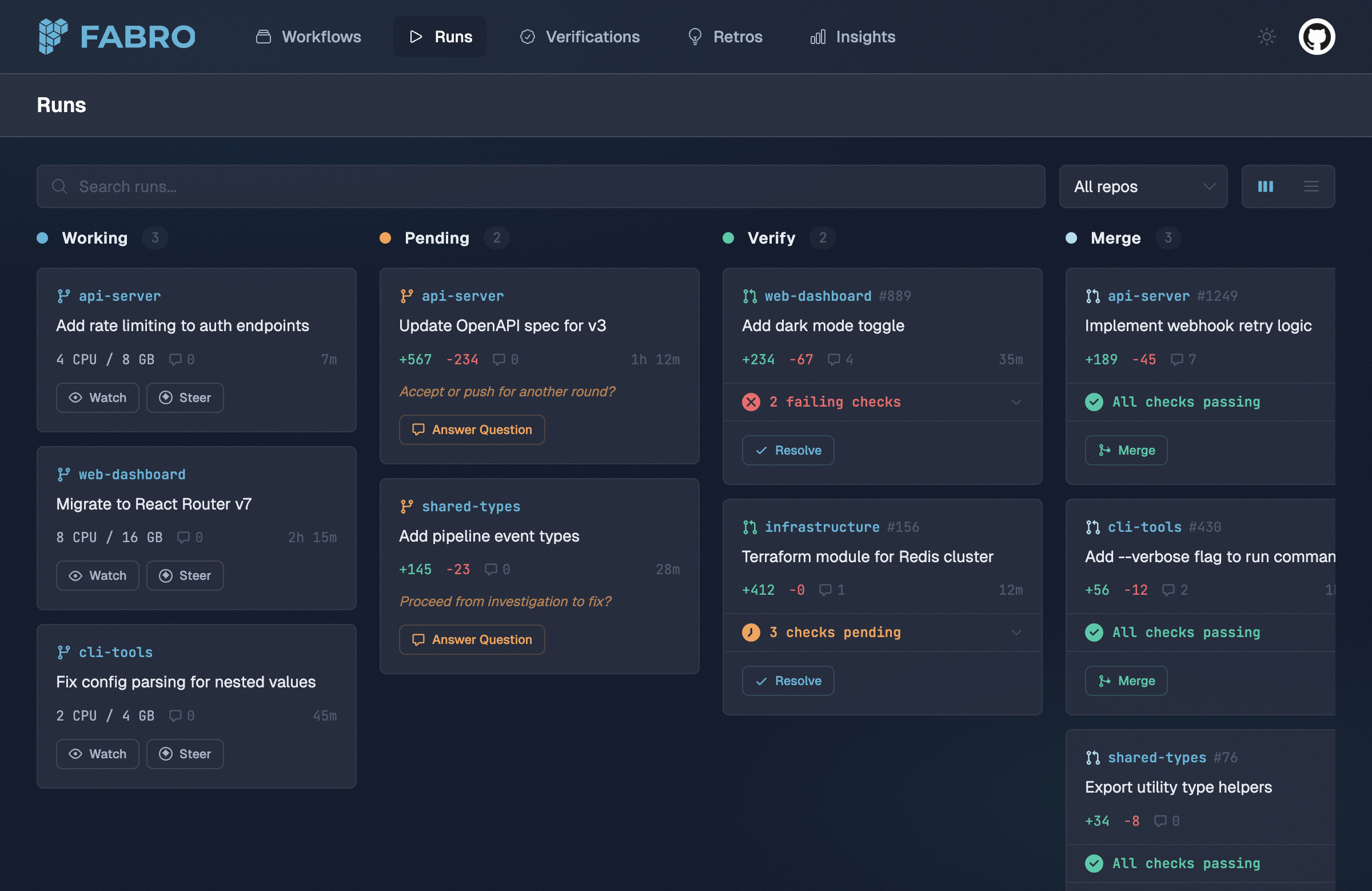
* **Runs board** — Monitor all active runs organized by status
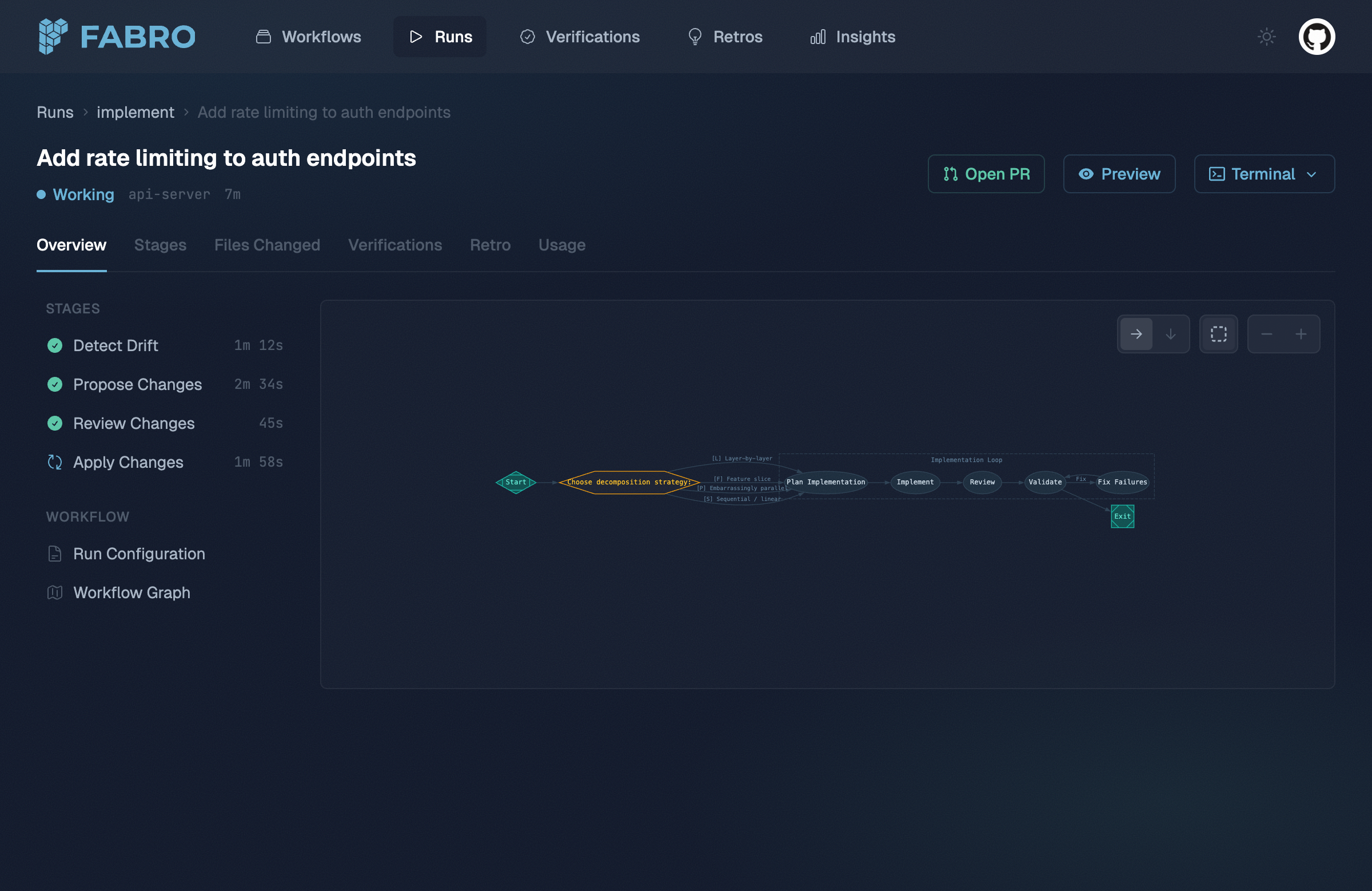
* **Run detail** — Real-time stage progress, event stream, diffs, and usage stats
* **Files Changed** — Browse changed files with a searchable tree, per-file status, aggregate diff stats, and split or stacked diffs
* **Settings** — Inspect server configuration, enabled integrations, storage, auth, and capacity settings
* **Start new run** — Submit workflows from the browser
* **Human-in-the-loop** — Answer agent questions through the web interface
* **Workflows** — Browse available workflows, view their graphs, and see run history
* **Insights** — SQL-based analysis across runs via DuckDB
 ## Event streaming
The API streams run events via [Server-Sent Events (SSE)](/api-reference/runs/stream-run-events). Every stage start, LLM call, tool invocation, and edge selection is emitted as a structured JSON event. Any HTTP client that supports SSE can subscribe — the web UI is just one consumer.
## Human-in-the-loop
Human-in-the-loop questions are served over HTTP. The engine blocks the current stage until an answer is submitted, then continues execution. See the [list questions](/api-reference/human-in-the-loop/list-run-questions) and [submit answer](/api-reference/human-in-the-loop/submit-run-answer) API reference pages.
## Authentication
The server configures auth with `server.auth.methods`:
* **`dev-token`** — Operators can call the API directly with `Authorization: Bearer fabro_dev_...`, and the web login page can accept the dev token too.
* **`github`** — End users sign in through GitHub OAuth and receive a browser session cookie.
Both methods can be enabled simultaneously:
```toml title="settings.toml" theme={"languages":{"custom":["/languages/dot.json","/languages/fabro.json"]}}
[server.auth]
methods = ["dev-token", "github"]
[server.auth.github]
allowed_usernames = ["alice", "bob"]
```
## Demo mode
Send the `X-Fabro-Demo: 1` header on any API request to get static mock data. To enable demo mode in the web UI, set the `fabro-demo=1` cookie in your browser devtools (Application → Cookies). This lets you explore the UI without API keys or real workflow execution.
## Pointing the CLI at a server
The CLI can target a running Fabro server for commands that support a remote API. Configure `~/.fabro/settings.toml`:
```toml title="settings.toml" theme={"languages":{"custom":["/languages/dot.json","/languages/fabro.json"]}}
[cli.target]
type = "http"
url = "https://fabro.example.com/api/v1"
```
Or use the `--server` flag:
```bash theme={"languages":{"custom":["/languages/dot.json","/languages/fabro.json"]}}
fabro model list --server https://fabro.example.com/api/v1
```
For dev-token servers, save the token in the CLI auth store instead of exporting it for every command:
```bash theme={"languages":{"custom":["/languages/dot.json","/languages/fabro.json"]}}
fabro auth login --server https://fabro.example.com/api/v1 --dev-token fabro_dev_...
```
`fabro model list` and `fabro model test` honor `[cli.target]` by default unless you explicitly pass `--storage-dir`. `fabro exec` remains a local agent session and only uses the server when you pass `--server`.
See [User Configuration](/reference/user-configuration#cli-target-section) for the full connection options, including client certificates for proxy-terminated HTTPS endpoints.
## Next steps
Choose where the server runs: laptop or self-hosted Docker container.
Full settings.toml reference — authentication, reverse-proxy TLS, run defaults, and more.
REST API for submitting runs, streaming events, and managing resources.
The workflow engine and architecture.
## Event streaming
The API streams run events via [Server-Sent Events (SSE)](/api-reference/runs/stream-run-events). Every stage start, LLM call, tool invocation, and edge selection is emitted as a structured JSON event. Any HTTP client that supports SSE can subscribe — the web UI is just one consumer.
## Human-in-the-loop
Human-in-the-loop questions are served over HTTP. The engine blocks the current stage until an answer is submitted, then continues execution. See the [list questions](/api-reference/human-in-the-loop/list-run-questions) and [submit answer](/api-reference/human-in-the-loop/submit-run-answer) API reference pages.
## Authentication
The server configures auth with `server.auth.methods`:
* **`dev-token`** — Operators can call the API directly with `Authorization: Bearer fabro_dev_...`, and the web login page can accept the dev token too.
* **`github`** — End users sign in through GitHub OAuth and receive a browser session cookie.
Both methods can be enabled simultaneously:
```toml title="settings.toml" theme={"languages":{"custom":["/languages/dot.json","/languages/fabro.json"]}}
[server.auth]
methods = ["dev-token", "github"]
[server.auth.github]
allowed_usernames = ["alice", "bob"]
```
## Demo mode
Send the `X-Fabro-Demo: 1` header on any API request to get static mock data. To enable demo mode in the web UI, set the `fabro-demo=1` cookie in your browser devtools (Application → Cookies). This lets you explore the UI without API keys or real workflow execution.
## Pointing the CLI at a server
The CLI can target a running Fabro server for commands that support a remote API. Configure `~/.fabro/settings.toml`:
```toml title="settings.toml" theme={"languages":{"custom":["/languages/dot.json","/languages/fabro.json"]}}
[cli.target]
type = "http"
url = "https://fabro.example.com/api/v1"
```
Or use the `--server` flag:
```bash theme={"languages":{"custom":["/languages/dot.json","/languages/fabro.json"]}}
fabro model list --server https://fabro.example.com/api/v1
```
For dev-token servers, save the token in the CLI auth store instead of exporting it for every command:
```bash theme={"languages":{"custom":["/languages/dot.json","/languages/fabro.json"]}}
fabro auth login --server https://fabro.example.com/api/v1 --dev-token fabro_dev_...
```
`fabro model list` and `fabro model test` honor `[cli.target]` by default unless you explicitly pass `--storage-dir`. `fabro exec` remains a local agent session and only uses the server when you pass `--server`.
See [User Configuration](/reference/user-configuration#cli-target-section) for the full connection options, including client certificates for proxy-terminated HTTPS endpoints.
## Next steps
Choose where the server runs: laptop or self-hosted Docker container.
Full settings.toml reference — authentication, reverse-proxy TLS, run defaults, and more.
REST API for submitting runs, streaming events, and managing resources.
The workflow engine and architecture.